Trezor Login® — Getting started
Welcome — this quick, clear guide walks you through logging into Trezor Login® and safely accessing your crypto using a Trezor hardware wallet. Read the steps, follow the tips, and keep your recovery details offline and secure.
What you’ll need
Before you begin, make sure you have: (1) a Trezor hardware wallet (Model One or Model T), (2) the USB cable supplied with it, (3) a computer or supported mobile device with a compatible browser or the Trezor Suite app, and (4) your recovery seed kept offline and private.
Step 1 — Connect your device
Plug your Trezor into your computer using the USB cable. When the device powers on, you’ll see the device welcome screen. For security, confirm that the device screen displays the expected Trezor branding and that there are no unusual prompts asking you to enter your recovery seed. Never enter your seed into a website or computer.
Step 2 — Open Trezor Login or Trezor Suite
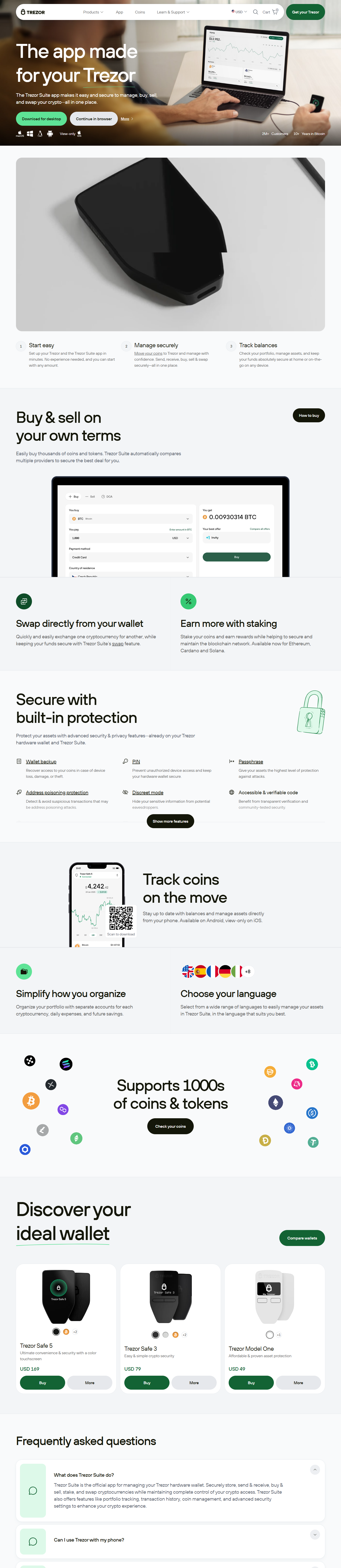
Open Trezor Login via the official site or launch the Trezor Suite desktop app. If you use a web browser, ensure the URL matches the official domain and that your connection is secure (HTTPS). Modern browsers will show a padlock icon in the address bar — confirm it before proceeding.
Step 3 — Authenticate with your device
- On the website or in Suite, choose Connect device or Login.
- The site will request permission to access the device. On your Trezor, a prompt will appear; physically approve the connection using the device buttons or touchscreen.
- When asked, verify the address or action on the Trezor screen itself. This step prevents malware on your computer from spoofing transactions.
Step 4 — Using a passphrase (optional)
Trezor supports adding an additional passphrase to your recovery seed, effectively creating a hidden wallet that is only accessible with that passphrase. Use this feature only if you understand the risks and implications: losing the passphrase means permanent loss of access to that hidden wallet. Do not store passphrases digitally unless encrypted and backed up securely.
Step 5 — Managing accounts
Once logged in, you can view wallet balances, send and receive coins, and manage multiple accounts. Each account is derived from your single recovery seed (plus optional passphrase). When sending funds, always check the destination address both on your computer and on the Trezor device.
Common login issues & fixes
Device not recognized: Try a different USB port or cable. Make sure the Trezor firmware is up to date via Trezor Suite.
Browser blocked connection: Check browser permissions for USB devices and disable browser extensions that might interfere (ad blockers, privacy extensions). Use an up-to-date browser such as Chrome, Edge, or Brave.
Forgot passphrase: A lost passphrase cannot be recovered by Trezor. If you rely on a hidden wallet, keep multiple physical backups of the passphrase in secure locations.
Security best practices
- Never share your recovery seed or type it into a computer or website. The seed belongs offline on paper or metal backup.
- Use a hardware-encrypted backup (metal seed storage) if your assets are significant.
- Keep firmware and Trezor Suite up to date, but only update firmware from official Trezor channels and verify release notes.
- Use a strong, unique passphrase if you enable this feature, and store backups physically in different secure locations.
- Consider using a dedicated computer for crypto operations if you manage large sums.
Quick checklist before sending funds
- Confirm the destination address on your Trezor screen, not only on your computer.
- Check the amount and network (e.g., Ethereum vs. BEP-20) on the device screen.
- Verify transaction fees and expected confirmation time in the Suite or wallet interface.
- Use small test transactions when sending funds to a new address for the first time.
FAQ
Q: Can I recover my wallet without the device?
A: Yes — use your recovery seed on a new Trezor or compatible wallet software that supports BIP39/SLIP-0010 (follow official guidance). Recovering onto a different device removes the benefits of a hardware wallet until you move the seed back to one.
Q: Is Trezor Login the same as Trezor Suite?
A: Trezor Login refers to the web-based authentication interface for hardware-wallet access. Trezor Suite is the official desktop (and web) app. Both leverage your Trezor device; choose the one that fits your workflow.